
Guides
How to Turn a Handwritten Letter Into a PDF (Using Just Your Phone)
No scanner? No problem. Turn a handwritten letter or any paper document into a PDF using your iPhone or Android phone in under a minute. Step-by-step.
You’ve handwritten a letter. Or you’ve got a paper one — a signed form, a bill, a contract someone needs back. And you’ve heard somewhere that you can post it from your phone, without queueing at the post office or owning a printer. That part’s true. But there’s a small step in the middle that doesn’t always get explained: turning the piece of paper into a digital file.
Specifically, into a PDF.
The good news is you don’t need a scanner. You don’t need any new apps. You don’t need to know what a PDF technically is, or anything about file formats. The phone already in your pocket does the whole job in about thirty seconds, and if it’s an iPhone or any modern Android, the tool is already installed.
Here’s exactly how.
What “turning paper into a PDF” actually means
Quick context, because this is the bit that doesn’t always get explained clearly.
A PDF is a digital version of a piece of paper. Think of it as a photograph that behaves like a page — it preserves exactly what the paper looked like, including handwriting, signatures, and any creases or coffee stains, and it can be sent over the internet like any other file.
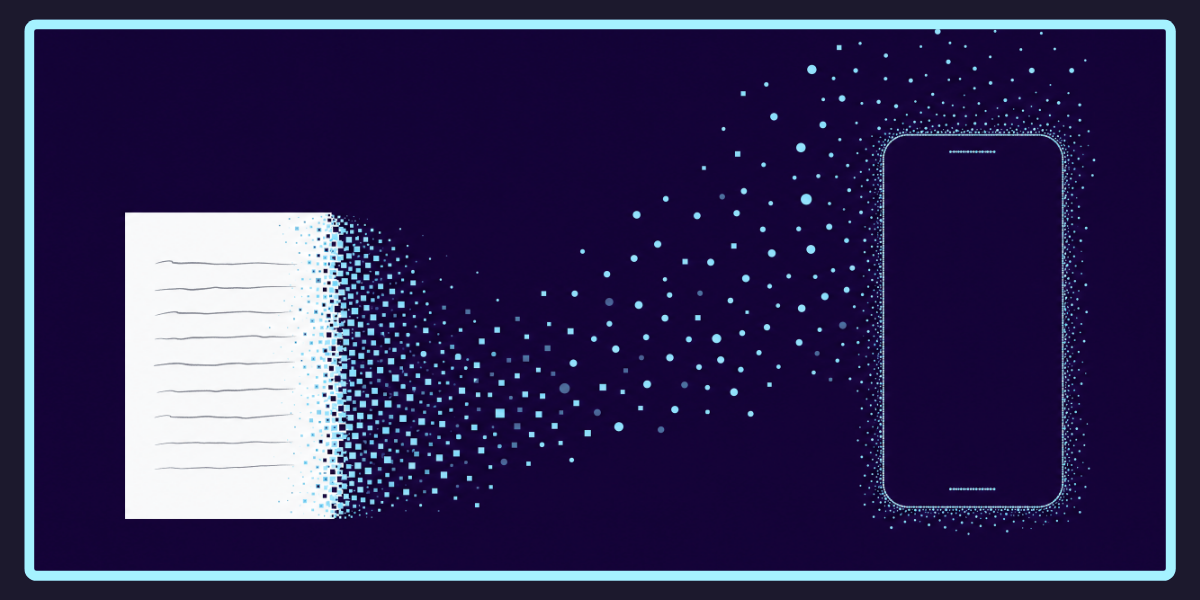
Once your handwritten letter is a PDF, you can email it, attach it to a message, print it from anywhere, or post it as physical mail through a service that handles all the printing and posting for you. The original paper letter doesn’t need to go anywhere — the PDF does the travelling.
What you’re actually doing, when you turn paper into a PDF on your phone, is photographing the letter in a slightly clever way that produces a document instead of a regular photo. That’s it. No magic, no skill required.
On an iPhone
Apple builds a scanner into the Notes app. It’s been there for years. Most people don’t know.
That’s the whole thing. The file you’ve just saved is a proper PDF. You can use it anywhere a PDF goes.
A few things that help: make sure there’s decent light on the page. Lay the letter flat on a contrasting surface — a wooden table works well if the paper is white. Don’t worry too much about holding the phone perfectly steady — the Notes app stabilises and crops automatically. If a scan doesn’t come out right, just retake it.
On an Android phone
Google builds a similar feature into Google Drive, which most Android phones have pre-installed.
The scanned letter saves to Google Drive as a PDF automatically.
A few Android phones — newer Samsungs, Pixels, some Xiaomi models — have a built-in scanner in the default Camera or Gallery app too. If you open your camera and see a mode labelled Document or Scan, that does the same job, sometimes more quickly.
To send the PDF from Drive: tap the file, tap the share icon, and pick where you want it to go — email, message, another app.
What if the letter is more than one page
Both iPhone and Android scanners handle multi-page documents in one continuous go. After you scan page one, lift the phone, place page two down, and scan again. Both apps treat the scans as a single document by default. You end up with one PDF, all pages in order.
If you accidentally scan pages in the wrong order, both apps let you rearrange them before saving — usually by long-pressing a page and dragging it.
Quality matters more than you’d think
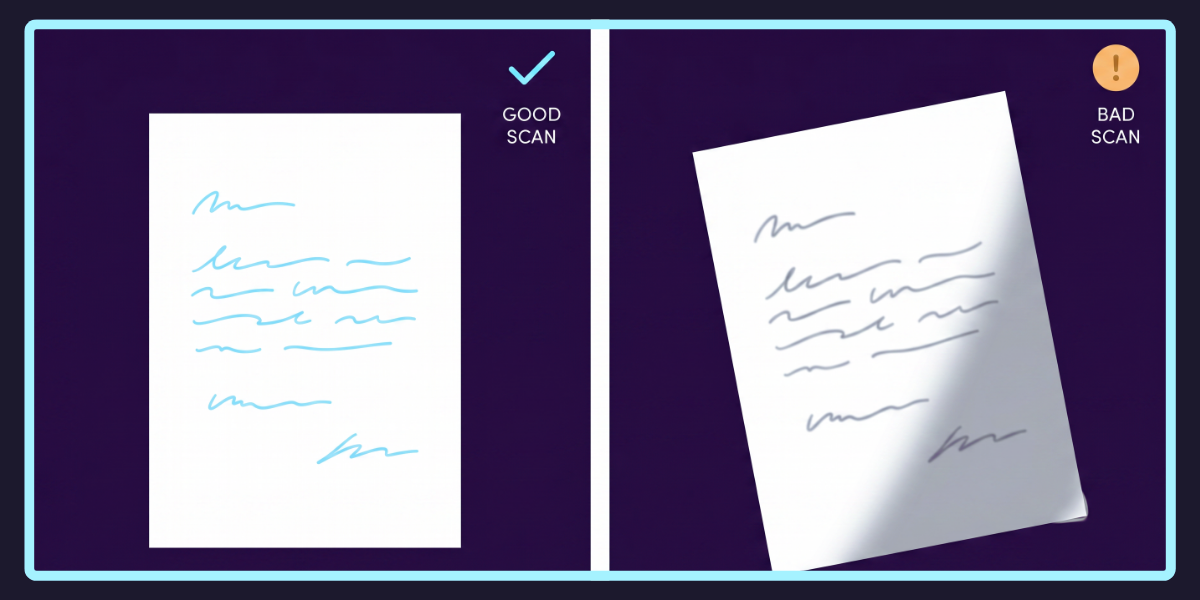
Here’s the bit nobody mentions: a bad scan can ruin the whole thing.
If you’re going to post this letter as physical mail through a service like PostMyDoc, it gets printed exactly as it appears in your PDF. A crooked scan becomes a crooked printout. Half the page in shadow becomes half the printout in shadow. A finger across the corner — you get the picture.
A few quick things that make a real difference:
Light. Natural daylight is best. Overhead room lighting also works. Avoid desk lamps that cast strong shadows from one side, and avoid anywhere your own shadow falls on the page.
Surface. Lay the letter completely flat. If it’s been folded, crease the folds backward to flatten them. Use a surface that contrasts with the paper — white paper on a dark wooden table is ideal. Avoid busy patterns and tablecloths.
Angle. Hold the phone directly above the page, parallel to it. The scanning app will usually warn you if you’re at an angle.
Check the result. Both Notes and Drive let you re-scan a page before saving. If something looks off, redo it. Takes ten seconds. Saves a lot more.
A good scan looks like a clean, white-edged version of your letter, with every word legible and no shadows or finger-edges intruding.
What to do with the PDF once you’ve got one
You’ve now got a PDF version of your handwritten letter. A few things you can do with it:
Email it. Attach it to any email like any other file.
Send it through a messaging app. WhatsApp, iMessage, Messenger — all of them support PDF attachments.
Print it later. Save the PDF and print it from any computer, library, or print shop whenever you next need to.
Post it as physical mail, without ever printing it yourself. This is what services like PostMyDoc exist for. You upload the PDF, we print it on your behalf, envelope it, and post it via Australia Post — domestic or international. From the same phone you just scanned with, if you’ve got the PostMyDoc app. Or from the website. Same business day dispatch for orders before 2pm AEST. No printer, no envelope, no stamps, no post office trip.
The point is: once your letter is a PDF, you’ve got options. The paper original can sit in your drawer. The digital version does the actual travelling.
Frequently asked questions
Do I need to download a new app for this?
No. Both iPhone and Android have the scanning function built into apps you almost certainly already have — Notes on iPhone, Google Drive on Android. If you’ve got either of those, you’ve got everything you need.
Will my handwriting still be readable?
That depends on your handwriting, not the scanner. The scan captures exactly what’s on the page — if a person could read it, the scan will show it. The scanning apps actually sharpen contrast slightly, which often makes handwriting more legible than the original.
Can I sign documents this way?
Yes. Sign the paper with a pen, then scan it. Your signature appears in the PDF exactly as you wrote it. This is how most people send signed contracts now.
What about just photographing the letter normally?
A regular photo of your letter is technically usable, but a scan is much cleaner. The scanner crops out the background, flattens any tilt, and adjusts the lighting so the writing is sharp. A photo of a letter on your kitchen bench will include your kitchen bench. The scan looks like a document. The photo looks like a photo.
What if I’ve already taken photos of my letter — can I still turn them into a PDF?
Yes. On iPhone, open the Photos app, select your photos, tap the share icon, and choose Print. On the print preview screen that comes up, pinch-zoom outward on the preview — that turns it into a PDF you can then save or share. Counterintuitive but reliable. On Android, Google Drive’s Upload option will accept photos and let you save them as a PDF.
What’s the difference between a scan and a photo, really?
A scan is a photo with smart processing layered on top. The app detects the edges of your document, crops out everything else, flattens any perspective distortion, and adjusts the lighting so the text is sharp and the page looks rectangular. A photo is just a photo. For document purposes, the scan is what you want.
Will the file be too big to email?
Almost never. A typical scanned letter is around 200KB to 1MB per page — well within the limits of any email, messaging app, or upload form.